
Comparison
TinyPNG Alternative on Mac: Offline Batch Compression without Cloud Limits
TinyPNG is familiar and accessible, but uploading sensitive client assets to an external server, hitting 20-image batch limits, and waiting on network round-trips breaks local macOS workflows. TinyOwl offers a native, local-first alternative built exclusively for Apple Silicon.
TinyOwl version note: Written for TinyOwl v0.7.2 (macOS 12+ on Apple Silicon).
Why Leave TinyPNG for Local Desktop Compression?
For over a decade, TinyPNG (and TinyJPG) has been the default recommendation for shrinking images before publishing. Dragging a file into a browser tab and getting back a smaller PNG or JPEG is frictionless.
However, as production demands evolve—especially for developers, designers, photographers, and independent creators—relying on a browser-based cloud compressor creates recurring friction:
- Privacy & Confidentiality Violations: Uploading unreleased app UI mockups, confidential client contracts, embargoed product photos, or personal imagery to remote cloud servers violates NDAs and enterprise data handling policies.
- Plan limits: Browser tools can place limits on batch size, file size, or usage depending on the current plan. Check the provider’s current pricing before a large migration.
- Network round trips: A browser workflow still needs an upload and a download. This can be inconvenient on slow or unreliable connections, especially for large batches.
- Different cost models: A local desktop license and a hosted service solve different problems. Compare the current plan terms with the workflow you actually need.
TinyOwl is a local-first macOS option for people who prefer to compress images on their own machine and optionally upload only the output they choose.
Side-by-Side Comparison: TinyPNG vs. TinyOwl
The following table breaks down the fundamental architectural differences between cloud-dependent compressors and TinyOwl:
| Dimension | TinyPNG (Web / Pro / API) | TinyOwl (macOS Desktop) |
|---|---|---|
| Where it runs | Cloud service; source files are uploaded | On your Mac |
| Source-file path | Processed remotely | Kept local until you choose to upload output |
| Formats | PNG, JPEG, WebP | PNG, JPG/JPEG, WebP, AVIF, BMP, TIFF |
| Batch & output | Depends on the current plan; download results | Batch locally; save, overwrite, or upload output |
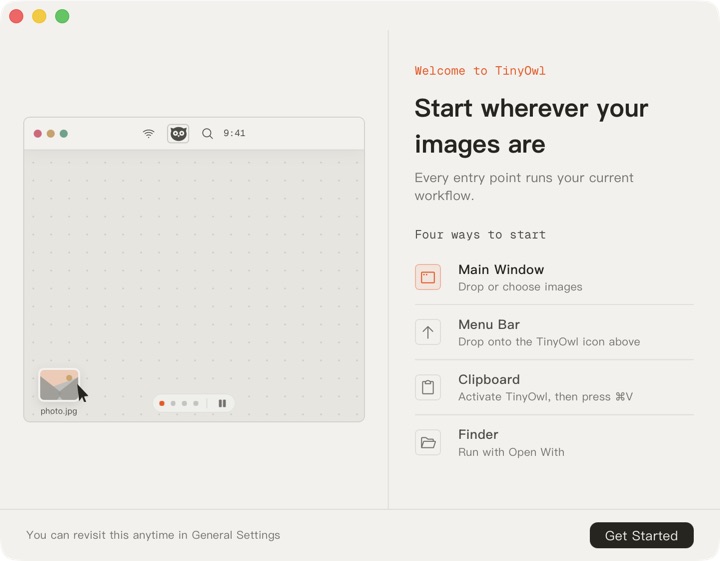
| Ways to start | Browser drag-and-drop or API script | Menu bar, clipboard while active, Finder “Open With” |
| Optional upload | Download first, then use another destination | Send finished files to your own R2/S3/OSS/COS bucket |
| Pricing | See TinyPNG’s current plans | One-time license; see the product page for the current price |
Apple Silicon Native Rust Engine: Local Image Processing
TinyOwl does not wrap an Electron browser or send command-line calls to slow Python scripts. The core image pipeline is engineered in Rust, compiling directly to ARM64 machine code for Apple Silicon.
When you drop 100 screenshots into TinyOwl:
- Images are decoded locally in parallel across all Apple Silicon performance and efficiency cores.
- Color quantization, quantization matrices, and lossless dictionary passes run directly in system RAM.
- No network requests are initiated. Your battery is not wasted negotiating TLS handshakes or uploading megabytes of image payloads over Wi-Fi.
Whether you are working on an airplane with Wi-Fi disabled, inside a secure corporate intranet, or in a coffee shop with spotty cellular tethering, your image optimization workflow never breaks.
Workflow Automation: Beyond Simple File Squeezing
Most desktop alternatives to TinyPNG simply mimic the web interface: drop files, wait for a progress bar, and click download.
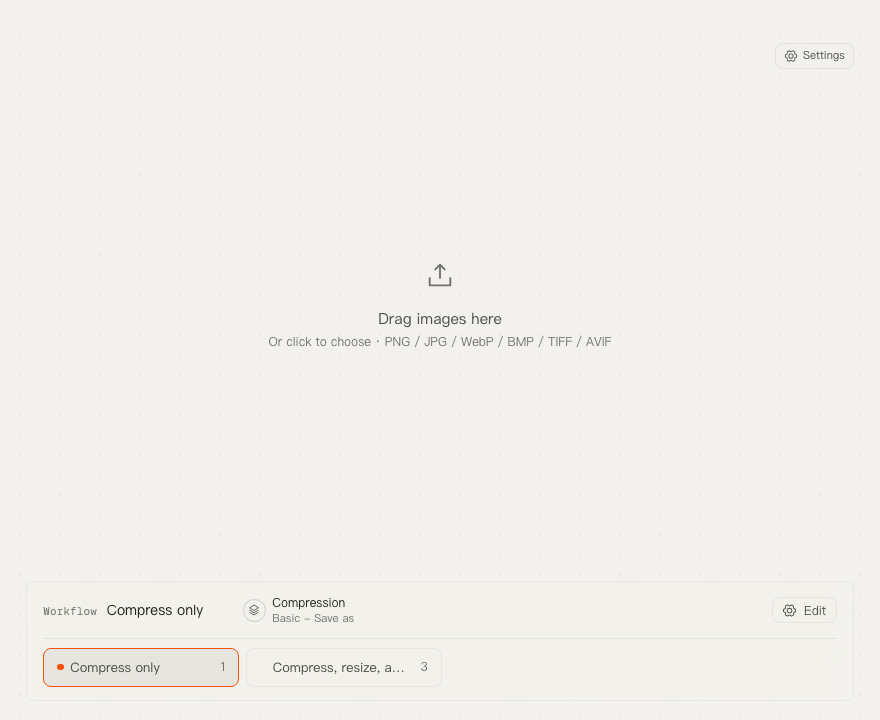
TinyOwl treats compression as one step inside a reusable desktop workflow:
Resize (Optional) ➔ Compression (Required) ➔ Upload to Cloud (Optional)- Integrated Resizing: Automatically downscale 2x/3x retina screenshots (e.g., max width 1600px or 50% scale) before compression, eliminating manual export steps in Figma or Photoshop.
- Smart Presets: Switch between “Original Format - Save As”, “WebP - Web Production Q75”, and “Aggressive AVIF Q50” in one click.
- Direct-to-Cloud Upload: While TinyPNG requires downloading compressed files and re-uploading them via web dashboards or FTP, TinyOwl can immediately upload your compressed WebP files to your own bucket (Cloudflare R2, AWS S3, Alibaba OSS, Tencent COS, or MinIO) and place the final public Markdown link onto your clipboard.
- Frictionless Entry Points:
- Menu Bar Drop Zone: Drag assets directly onto the macOS menu bar icon.
- Clipboard Ingestion (
⌘V): Take a screenshot to clipboard, activate TinyOwl, and press⌘Vto process immediately. - Finder Integration: Right-click any selection in Finder and choose Open With → TinyOwl.
Honest Limitations: When TinyOwl Is NOT the Right Fit
We believe in complete transparency. TinyOwl is intentionally specialized rather than an all-in-one kitchen sink:
- Apple Silicon Only: TinyOwl requires an M1, M2, M3, or M4 Mac running macOS 12 (Monterey) or later. Intel-based Macs are not supported.
- macOS Only: There is currently no Windows or Linux version. If your team relies on cross-platform GUI consistency, a browser-based tool or CLI is required.
- No Video or PDF Compression: TinyOwl is strictly an image workflow tool (PNG, JPG, WebP, AVIF, BMP, TIFF). It does not compress MP4/MOV videos or PDF documents.
- No Cloud-Hosted File Storage Included: Unlike SaaS image hosts that bundle hosting at high monthly markups, TinyOwl connects directly to your own cloud buckets (R2, S3, OSS, COS) using your API keys. You maintain full custody of your storage.
Benchmark: Mixed Test Corpus Results
To demonstrate real-world efficiency, we tested a mixed corpus of 106.56 MB consisting of raw retina application screenshots, camera JPEG exports, and mixed web assets:
| Compression Target | Input Size | Output Size | Savings | Processing Time (M-series) |
|---|---|---|---|---|
| Preserve Original Format (Q75) | 106.56 MB | 75.24 MB | 29.39% | ~36.2s |
| Preserve Original Format (Q50) | 106.56 MB | 25.75 MB | 75.83% | ~12.5s |
| Convert to WebP (Q75) | 106.56 MB | 9.93 MB | 90.68% | ~21.8s |
| Convert to WebP (Q50) | 106.56 MB | 6.91 MB | 93.52% | ~22.5s |
| Convert to AVIF (Q50) | 106.56 MB | 4.90 MB | 95.40% | ~53.7s |
| PNG-Only Source Subset (Q50) | 78.25 MB | 22.33 MB | 71.46% | ~8.6s |
Test notes: Executed on release build utilizing multi-core parallelism. Converting raw PNG retina screenshots to WebP Q50 achieves an extraordinary 93.5% size reduction while maintaining crisp typography and UI border contrast.
Transitioning from TinyPNG to TinyOwl
Switching your daily workflow takes less than two minutes:
- Download TinyOwl for macOS and move it to your
/Applicationsfolder. - Open TinyOwl and take the 30-second onboarding walkthrough.
- If you want identical behavior to TinyPNG (keep original file format, safe save-as copy):
- Choose the built-in Basic - Save as preset in the workflow bar.
- Designate a destination folder when prompted (e.g.,
~/Pictures/Compressed).
- If you want modern web asset optimization:
- Switch the active workflow to WebP - Save as.
- Drag your images onto the window or drop them onto the menu bar icon.
Experience the freedom of batch-unlimited, privacy-respecting local image compression designed for the power of Apple Silicon.