
Comparison
TinyOwl vs TinyPNG
TinyPNG and TinyOwl solve different parts of image work. This guide helps you decide whether a browser/API workflow or a local Mac workflow better fits the files you handle every day.
Short answer
Keep TinyPNG if its browser, API, or WordPress workflow is central to how you publish, or you only need to compress a few public assets at a time. Check TinyPNG’s current site for its supported formats and plan terms.
Try TinyOwl if you use an Apple Silicon Mac, prefer source images to stay on your machine during compression, and want a saved resize → compress → optional upload workflow available from the menu bar, clipboard, or Finder.
Neither is a universal replacement for the other. TinyPNG is a hosted service; TinyOwl is a local desktop app that can optionally hand finished files to storage you control.
Key differences
| Question | TinyPNG | TinyOwl |
|---|---|---|
| Where does compression run? | Source images are sent to its hosted service. | On your Mac. |
| How do you start? | Browser upload or an API-based workflow. | Main window, menu bar, clipboard while active, or Finder Open With. |
| What happens after compression? | Download the result or continue through your existing integration. | Save locally, overwrite when you choose, or upload finished output to your own storage. |
| Is it suitable for every Mac? | Use the service from a supported browser/integration. | Apple Silicon Macs running macOS 12 or later. |
| What is the commercial model? | Check TinyPNG’s current plans. | One-time license; see TinyOwl’s current pricing page. |
TinyOwl can connect an upload step to your own R2, S3, OSS, COS, MinIO, or other S3-compatible destination. This is not bundled hosting: you keep the destination account and its access rules.
A local workflow, not just a different compressor
TinyOwl keeps three repeatable steps together:
Resize (optional) → Compression → Upload (optional)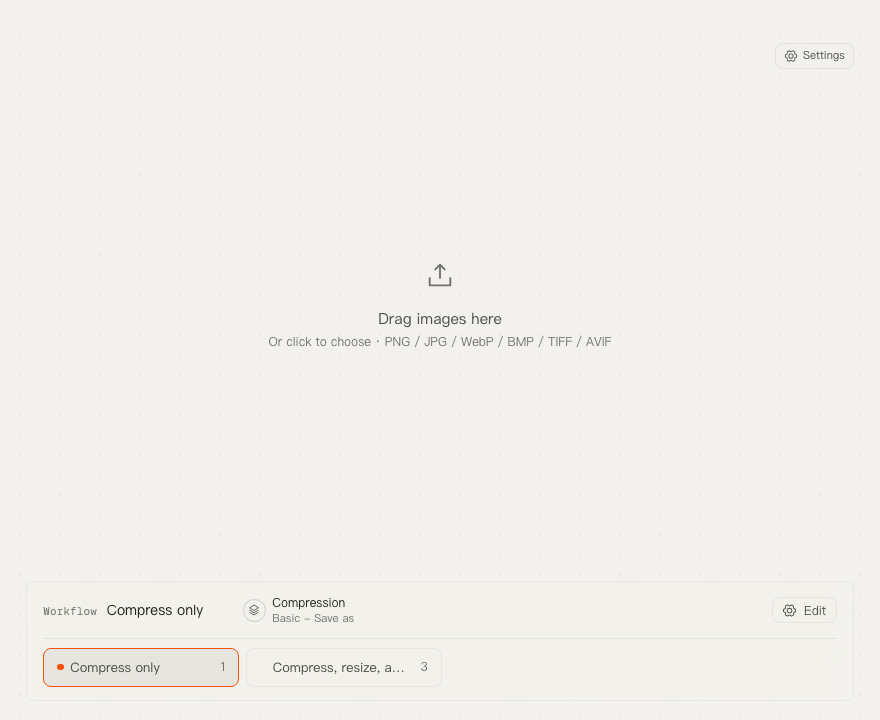
For a blog screenshot, you might limit its display size, export WebP, then send only that output to a bucket you already operate. For private material, you can simply use a compress-only workflow and keep every file local.
TinyOwl’s Benchmark shows its own export paths and test conditions. It is not a TinyPNG head-to-head benchmark, so this page does not turn those numbers into a cross-tool score.
When not to switch
Stay with TinyPNG, or use both tools for different jobs, when:
- an API or WordPress integration is the centre of your publishing pipeline;
- a hosted browser workflow is more convenient for the people who need to use it;
- you need a platform other than an Apple Silicon Mac;
- you do not need saved local workflows or an optional handoff to your own storage.
TinyOwl also does not compress video or PDF files, and it does not create buckets, configure public access, or provide a hosted CDN.
Try TinyOwl safely
- Start with a copy of a small, non-sensitive batch.
- Choose a save-as preset that keeps output separate from originals.
- Compare the files at the size your readers will see them.
- Add WebP/AVIF or an upload step only when that is part of your real delivery workflow.
The existing TinyPNG Mac alternative article remains available while this comparison page establishes the decision-oriented format. For setup details, use the guide.