
Comparison
TinyOwl vs JPEGmini
JPEGmini and TinyOwl are both Mac apps for shrinking images, but they are built for different jobs: JPEGmini for photographers' JPEGs and Adobe workflows, TinyOwl for mixed-format batches and optional delivery to your own storage.
Short answer
Keep JPEGmini if most of your files are photographs in JPEG, you work in Lightroom, Photoshop, or Capture One, or you want watch folders and video compression. It also has a free tier, so you can try it before paying.
Try TinyOwl if you use an Apple Silicon Mac and your batches mix JPEG, PNG, WebP, and AVIF, such as blog screenshots and web images. It also helps if you sometimes want finished files uploaded to your own R2, S3, OSS, COS, or MinIO bucket, with lifetime updates included in a one-time price.
Photographers who also publish to a blog often end up with both: JPEGmini for the photo library, TinyOwl for web delivery.
What JPEGmini does well
JPEGmini is a desktop optimizer aimed at photographers. Its pricing page describes the core job as JPEG-to-JPEG optimization, with HEIC-to-JPEG conversion as well. The free plan gives you a 7-day trial of the Pro features, then 50 images a day on one device, and batch processing is included.
The paid plans add things TinyOwl does not try to do:
- Photo-editor integration. The Pro + Plugins plan adds Lightroom, Photoshop, and Capture One plugins.
- Automation. The Pro + Automations plan adds watch folders and background processing.
- Video. The paid plans include H.264 and H.265 video compression.
- Large files. The Free and Pro plans list support for panoramas up to 512 MP.
- Windows. JPEGmini also runs on Windows.
If your day is “import a shoot, optimize the JPEGs, deliver them to a client,” JPEGmini is built around that.
Price and updates
| JPEGmini | TinyOwl | |
|---|---|---|
| Free option | Free plan: 7-day trial of Pro features, then 50 images a day on one device | 7-day full-featured trial |
| One-time price | Pro $59 for up to 3 devices. Pro + Plugins $89. Pro + Automations $99. Complete Bundle $129, shown as reduced from $149. | Early-bird $9, regular $15, for up to 2 Macs. See pricing. |
| Updates | One year of updates is included. After that you can keep your current version or pay for a renewal. | Lifetime updates, including major versions. |
The update terms are the difference worth checking, more than the headline price. JPEGmini’s help center says the license is yours for life, but updates are included for the first year only. TinyOwl’s one-time license includes all future updates.
The two prices are not for the same scope, though. JPEGmini Pro includes video and has a free plan; TinyOwl covers a narrower, image-only workflow. Compare what you will actually use.
Formats and workflow
For images, JPEGmini’s pricing page lists JPEG-to-JPEG and HEIC-to-JPEG optimization. It does not list PNG or WebP. If your batch includes screenshots, UI images, or WebP files for the web, you will need another tool for those.
TinyOwl handles PNG, JPG/JPEG, WebP, BMP, TIFF, and AVIF, and it can export to WebP or AVIF. It does not support HEIC. Its main habit is a saved workflow:
Resize (optional) → Compression → Upload (optional)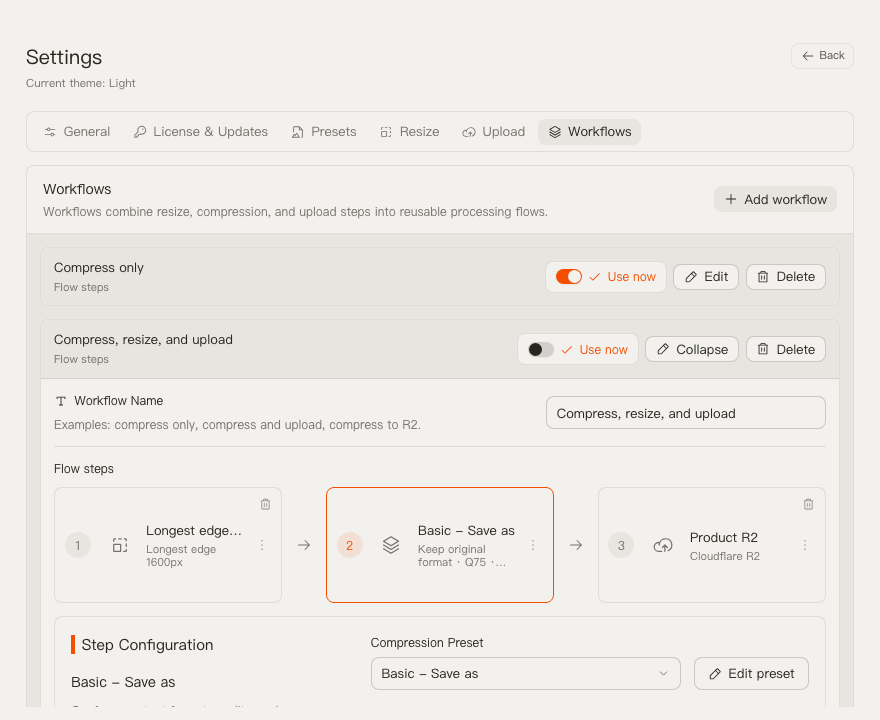
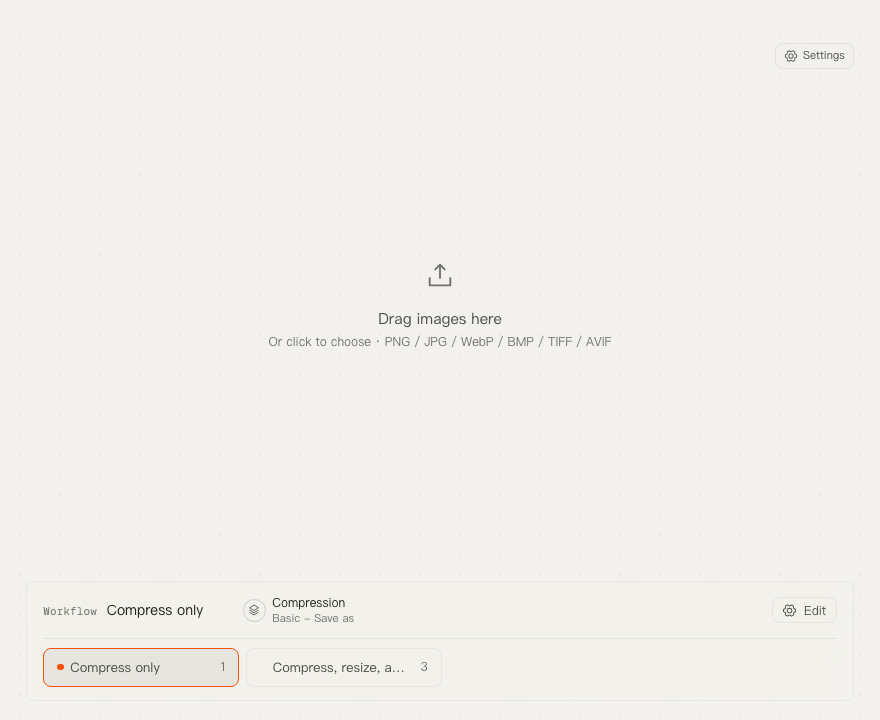
You can start a run from the main window, by dragging files onto the menu bar icon, with ⌘V while TinyOwl is active, or from Finder Open With → TinyOwl. If you add an upload step, TinyOwl sends the finished file to your bucket with your credentials, and you can copy the public URL as Markdown from the menu bar. TinyOwl is not an image host.
JPEGmini’s pricing page does not list an upload-to-storage feature, so that handoff is a separate step there.
Key differences
| Question | JPEGmini | TinyOwl |
|---|---|---|
| Main job | Optimizing photographers’ JPEGs, with HEIC converted to JPEG. | Saved resize, compress, and optional upload workflows for several image formats. |
| Image formats | JPEG and HEIC input, JPEG output, per its pricing page. | PNG, JPG/JPEG, WebP, BMP, TIFF, AVIF. No HEIC. |
| Batch processing | Yes, including on the free plan. | Yes, multiple images per run. |
| Photo-editor plugins | Lightroom, Photoshop, Capture One on the higher plans. | None. |
| Watch folders | On the Pro + Automations plan and the bundle. | No. |
| Video | H.264 and H.265 on paid plans. | No. TinyOwl does not process video or PDF files. |
| Upload to your storage | Not listed. | Optional step to R2, S3, OSS, COS, MinIO, or a compatible endpoint. |
| Platform | Mac and Windows. | Apple Silicon Macs running macOS 12 or later. |
| Updates | One year included, then optional renewal. | Lifetime, including major versions. |
This page does not publish a file-size or quality comparison. We have not run a controlled test of the two apps on the same images with matching settings, so a head-to-head number would not be honest.
Which one to choose
JPEGmini is the better fit when:
- your files are mostly photographs in JPEG or HEIC;
- you work inside Lightroom, Photoshop, or Capture One, or want watch folders;
- you also need video compression, or need Windows;
- you want to try a free plan first.
TinyOwl is the better fit when:
- your batches mix JPEG, PNG, WebP, and AVIF, such as blog and docs images;
- you want to save a resize and compress routine and start it from the menu bar, clipboard, or Finder;
- you sometimes upload finished files to a bucket you already run;
- you prefer one price with lifetime updates.
Use both if you handle a photo library and also publish to the web. And stay with JPEGmini if you need HEIC input, Windows, or Adobe plugins.
To try it safely, use copies of a few photos you know well. Run them through JPEGmini on the free plan, then through a TinyOwl save-as workflow that keeps your originals. Compare the results at the size you actually publish, not only by file size.
FAQ
How much does JPEGmini cost?
JPEGmini has a free plan with a 7-day trial of Pro features, then 50 images a day on one device. Pro is $59 for up to 3 devices; Pro + Plugins is $89, Pro + Automations is $99, and the Complete Bundle is $129. Check its pricing page for the current numbers.
Does JPEGmini support PNG or WebP?
Its pricing page lists JPEG-to-JPEG and HEIC-to-JPEG optimization for images and does not list PNG or WebP. TinyOwl handles PNG, WebP, and several other formats.
Does JPEGmini include free updates for life?
No. Updates are included for the first year. After that you can keep your current version or buy a renewal. TinyOwl’s one-time license includes lifetime updates, including major versions.
Can TinyOwl upload compressed images to cloud storage?
Yes, as an optional workflow step to your own bucket. JPEGmini’s pricing page does not list an upload feature.
Does TinyOwl support HEIC?
No. Convert HEIC files with another tool first. JPEGmini can convert HEIC to JPEG.
Which is better for photographers?
That depends on your files and tools. JPEGmini is built around photographers’ JPEGs and Adobe plugins; TinyOwl is built around web-ready batches and delivery. We have not compared output quality, so test both on your own photos.
See the guide for TinyOwl settings, the upload guide for bucket setup, and the compare hub for the other decision guides.