
Workflow
S3-Compatible Image Upload Workflow on macOS
If your image host exposes an S3-compatible endpoint, TinyOwl can keep the image work on your Mac, then send the finished file to that destination. This guide covers the few fields that are easy to mix up: endpoint style, bucket, region, public URL, and upload paths.
AI assisted the initial structure. The TinyOwl screens and product steps were checked on an Apple Silicon Mac with TinyOwl v0.7.6; storage-specific values should be verified against your provider’s documentation.
Version note: checked with TinyOwl v0.7.6 on macOS 12 or later on Apple Silicon.
When a Generic S3-Compatible Provider Is the Right Choice
Choose S3-Compatible when your storage service gives you an S3 endpoint and access keys, but is not one of TinyOwl’s named presets. That commonly includes self-hosted or managed object storage. If you use Cloudflare R2, Alibaba OSS, Tencent COS, AWS S3, or MinIO, start with its matching preset instead; the preset fills in provider-specific defaults.
This is a small, practical workflow rather than a new image host:
optional resize → local compression → your S3-compatible bucketTinyOwl does not create a bucket, change its policy, or make it public. Keep your storage provider’s dashboard nearby for those tasks.
Collect These Values Before Opening TinyOwl
Most S3-compatible providers document the same set of connection values. Copy them from the provider’s console or documentation rather than guessing from a website URL.
| TinyOwl field | What it is | Common mistake |
|---|---|---|
| Bucket | The bucket that receives the object. | Entering a domain name instead of the bucket name. |
| Endpoint | The S3 API hostname, optionally with a port. | Using a console or CDN URL instead of the API endpoint. |
| Region | The region expected by the provider’s S3 API. | Leaving an AWS-looking default when the provider documents another region. |
| Access Key ID / Secret Access Key | Credentials allowed to write to this bucket. | Using a dashboard login password, or a key without write permission. |
| Public Base URL | An optional already-public URL prefix for copied links. | Assuming this field changes bucket access policy. It does not. |
| Force Path Style | A compatibility switch for how the bucket appears in requests. | Turning it off by default without checking the provider’s S3 documentation. |
For a local MinIO server, for example, the endpoint can be a local address such as http://127.0.0.1:9000. A hosted service normally supplies an HTTPS endpoint. MinIO documents its endpoint and access-key setup in its macOS documentation; use your own deployment’s values rather than the example values in this article.
Configure the Provider in TinyOwl
- Open Settings and choose Upload Providers.
- Select Add Upload Provider → S3-Compatible.
- Give the destination a name that makes its purpose clear, such as
Docs images. - Enter the bucket, endpoint, region, and the key pair from your storage provider.
- Add Public Base URL only if you already have a domain or public endpoint that serves the uploaded objects.
- Open Advanced options only when your provider documents a non-default request style. Many compatible services need Force Path Style; services that require virtual-hosted-style buckets need it turned off.
- Select Test Connection before attaching the provider to a daily workflow.
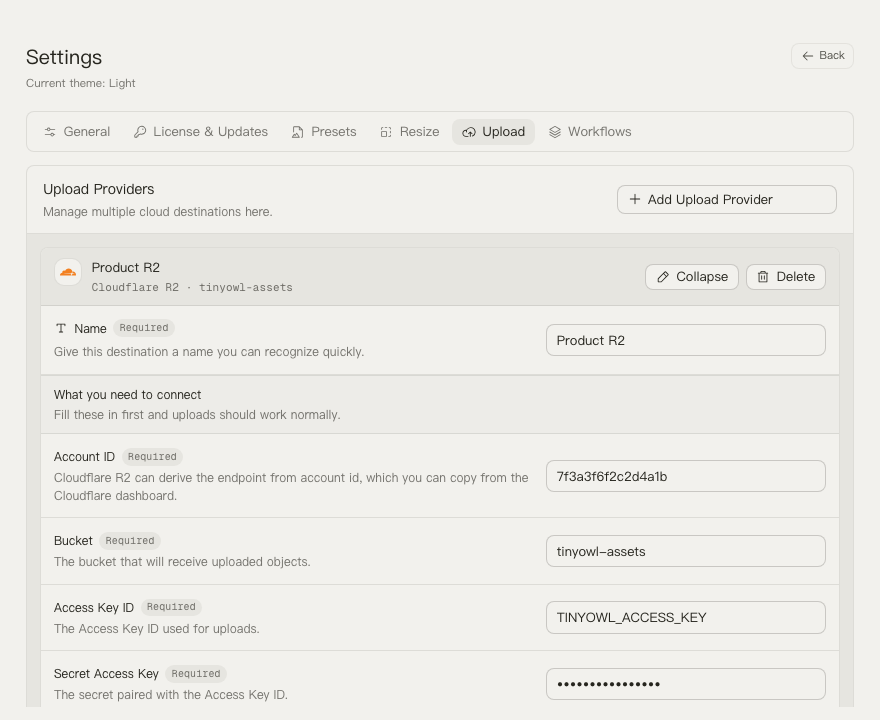
The test checks whether TinyOwl can authenticate with the endpoint and reach the bucket. A failed test is useful information: correct the endpoint, region, key permissions, or path-style setting before attempting a real batch.
Add It to a Reusable Image Workflow
Once the connection works, open Settings → Workflows. A workflow can have three parts:
- Add a resize step when your publishing destination has a fixed maximum dimension.
- Choose a compression preset. Compression is always local; choose the output format your destination accepts.
- Add an upload step, select the S3-compatible provider, then choose a filename strategy and upload path.
{yyyy}/{mm}/{dd} is a useful starting path template because it keeps daily uploads separate without encoding a private project name in every object key. If the same source filename is uploaded more than once, choose a timestamped or random filename strategy to avoid replacing an older object.
For the full field reference, including the object-key order, see the Upload Providers guide. If your end goal is technical writing, the screenshot → compress → upload → Markdown workflow shows how the provider fits into a repeatable posting flow.
An Upload Is Not Automatically a Public Image URL
This distinction prevents a common surprise: a successful upload only says that the object reached the bucket. It does not mean a browser can fetch that object.
Set Public Base URL in TinyOwl only after you have configured public access, a custom domain, or another deliberate delivery path in your storage provider. TinyOwl uses that value to assemble a copyable URL; it does not create DNS records, configure a CDN, or relax bucket permissions. If the copied URL returns 403 or 404, check the provider’s public-access and object-key rules first.
For a named-provider example, see Compress then Upload to Cloudflare R2 on macOS. Its custom-domain setup is R2-specific; the generic workflow above deliberately does not assume every provider handles public objects in the same way.
Troubleshooting the First Test
| What you see | Check first |
|---|---|
| Connection test fails immediately | Confirm the endpoint is the S3 API endpoint, not the web console or an image-delivery domain. |
403 or access denied | Confirm the key pair belongs to a policy that can write to this bucket and that there are no copied spaces. |
| Signature or region error | Use the exact region the provider documents; try the provider’s documented path-style setting. |
| Upload works but no usable copied link | Add an already-working Public Base URL. This changes link construction, not storage permissions. |
A link opens but returns 404 | Compare the workflow path template and filename strategy with the actual object key in your storage console. |
If this generic configuration still feels ambiguous, do one narrow test: upload a non-sensitive sample image to an empty test prefix, inspect its key in the storage console, then open the public URL in a private browser window. That separates authentication, object placement, and public delivery into three checks you can fix independently.