
Workflow
Run TinyOwl from Terminal (and from your AI coding agent)
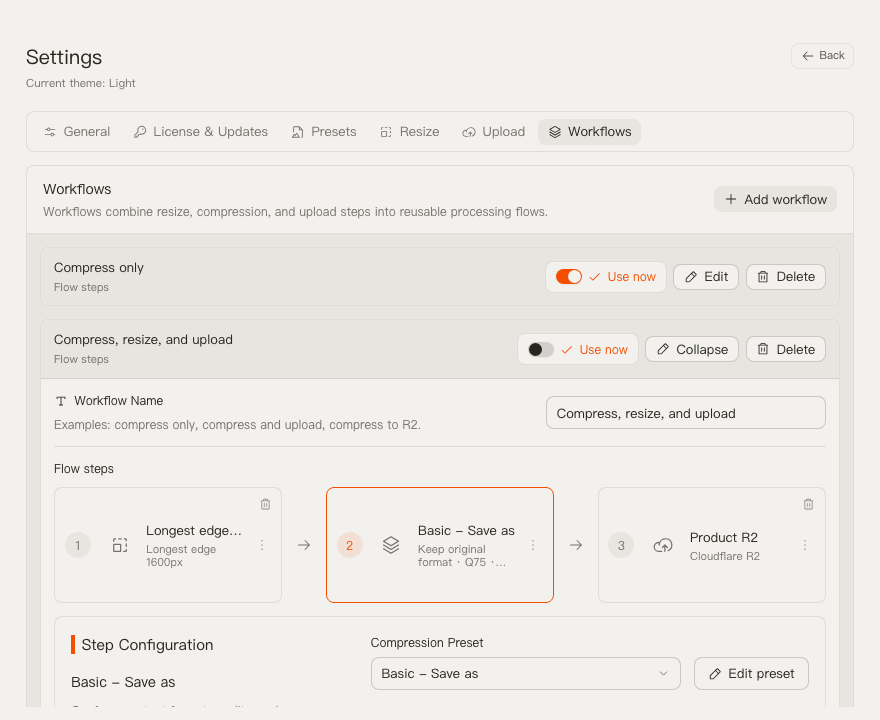
TinyOwl's desktop app saves your favorite resize, compression, and upload steps into reusable workflows. With the CLI, you can trigger those exact workflows directly from shell scripts, CI pipelines, and AI coding assistants without launching a GUI.
AI assisted draft; team reviewed facts against docs/cli.md and real CLI output on Apple Silicon / TinyOwl v0.8.x.
Version note: verified with TinyOwl v0.8.x on macOS 12 or later on Apple Silicon.
Same workflows as the desktop app, headless execution
TinyOwl was designed to solve repeated image friction on macOS: you combine a dimension rule, a local compression preset, and an optional bucket destination into a saved workflow, then trigger it whenever new assets arrive. In everyday desktop work, dragging a batch onto the window or pressing Command + V from the clipboard is fast and tactile.
However, desktop interactions fall short when image optimization belongs inside an automated pipeline:
- Build scripts and CI jobs: pre-optimizing documentation screenshots, changelog assets, or site banners right before bundling.
- Local repository hooks: ensuring newly added images in a pull request meet dimension and file-size expectations without manual clicking.
- AI coding assistants: tools like Cursor Agent, Claude Code, or Codex editing markdown docs and frontend templates, needing a reliable local command to compress or upload referenced images.
Instead of maintaining separate Node or Python scripts with duplicated image libraries, compression settings, and cloud SDKs, the TinyOwl CLI executes the exact same workflows configured in the desktop app. It runs headlessly: no window appears, no Dock icon activates, no menu bar tray icon initializes, and no WebView engine loads into memory.
For complete parameter references, see the comprehensive Command Line guide.
One-click install without sudo
TinyOwl ships as a single macOS application bundle containing a single binary. Opening the bundle normally launches the desktop user interface. Invoking the binary with arguments runs headlessly in CLI mode.
To set up the CLI on your Mac:
- On first launch, TinyOwl prompts to enable the command line tool with one click.
- You can also enable or disable it anytime in Settings → General → Command Line Tool.
Both paths create a symlink at ~/.local/bin/tinyowl pointing directly to the application executable inside /Applications/TinyOwl.app.
The installation is designed to be completely safe and unobtrusive:
- It never runs
sudoor asks for your system administrator password. - It never edits shell profiles such as
~/.zshrc,~/.bashrc, or~/.profile. - It never overwrites an existing file or a symlink belonging to another utility.
If ~/.local/bin is not yet on your PATH, TinyOwl displays the exact line to add to your shell environment so tinyowl can be called from anywhere.
For automated developer setups, dotfiles, or fresh workstation scripts, you can run the built-in installer directly from the bundle:
/Applications/TinyOwl.app/Contents/MacOS/TinyOwl cli installWhen you no longer need the command, removing it deletes only the symlink owned by TinyOwl without touching any other configuration:
tinyowl cli uninstallThree real commands with predictable JSON
The CLI is built around predictable outputs and scriptable execution. Here are three representative commands showing how inspection, plan simulation, and execution work.
1. Listing available workflows
To see what workflows are available to run, query the desktop configuration:
tinyowl workflows list --json{
"ok": true,
"workflows": [
{ "id": "workflow-compress-only", "name": "Compress only" },
{ "id": "workflow-compress-and-upload", "name": "Compress and upload" },
{ "id": "workflow-resize-compress-and-upload", "name": "Resize then upload" }
]
}When --json is passed, the CLI emits exactly one valid JSON document to stdout. All progress messages, diagnostic indicators, and warnings are routed strictly to stderr. Workflow IDs (like workflow-compress-only) remain stable machine identifiers across languages.
2. Simulating a run with dry-run
Before touching any files on disk or communicating with remote buckets, you can request an execution plan:
tinyowl run workflow-compress-only ~/Pictures/TinyOwl-demo.png --dry-run --json{
"ok": true,
"dryRun": true,
"plan": {
"workflow": { "id": "workflow-compress-only", "name": "Compress only" },
"inputCount": 1,
"items": [
{
"path": "~/Pictures/TinyOwl-demo.png",
"plannedOutputPath": "~/Desktop/zipic/73e34bef.png",
"supported": true
}
],
"compression": { "quality": 75, "outputFormat": "original" },
"license": { "authorized": true, "required": false }
}
}The plan tells you everything the command intends to do: the detected input files, the resolved output destination paths, whether the image format is supported, the compression quality and format target, and license authorization status.
3. Running a real workflow
When you are ready to process images, point the command at the target path and specify an output destination:
tinyowl run workflow-compress-only ~/Pictures/TinyOwl-demo.png --output-dir ~/Pictures/optimizedResults are saved into ~/Pictures/optimized. When the run finishes successfully, the process exits with exit 0. Directories passed as inputs are scanned recursively in deterministic order, ignoring symlinked folders.
Calling TinyOwl from AI coding assistants
AI coding tools like Cursor Agent, Claude Code, and other terminal-driven agents regularly work with images when generating documentation, writing technical blog posts, or preparing UI assets. However, automated agents struggle when command-line utilities interleave ANSI escape sequences, animated progress spinners, or interactive prompts on stdout.
TinyOwl’s CLI is deliberately structured for programmatic interaction:
- Clean stream isolation: With
--json, only the final structured payload is sent tostdout. Progress updates and status text write tostderr, allowing an AI assistant or shell pipe to feedstdoutdirectly intojqor standard JSON parsers without stripping terminal noise. - Stable status evaluation: An agent does not need to parse human text sentences to know whether an action worked; it inspects the process exit code directly.
- Safe dry-run inspection: Agents can verify whether inputs are valid image files, preview output paths, and check required permissions prior to disk modifications.
- No interactive blocking: Destructive workflows fail immediately with a dedicated confirmation exit code unless explicitly confirmed with
--yes.
AI assistants invoke TinyOwl through standard terminal execution, using --json output and deterministic exit codes.
Limits, safety flags, and exit codes
To avoid unintended file overwrites and security leaks in headless environments, the CLI adheres to strict operational boundaries:
Safety flags and overrides
- Overwrite and crop protection: Any workflow configured to overwrite source files in-place or perform a crop operation requires the explicit
--yesflag. Without--yes, the command exits immediately with exit code4. - Local-only execution: If a workflow includes an upload step but you only need local resize and compression (for example, in an offline CI test), use
--skip-upload.
Licensing boundaries
- Single image operations: Processing a single supported image follows TinyOwl’s free behavior.
- Batch processing: Processing batches of images requires the same valid signed license or active trial used by the desktop app. Without authorization, a batch run fails with an authorization-required exit code (documented as
3).
Privacy and credential safety
- Configuration source: The CLI reads existing workflow configurations from the desktop app’s
settings.json. - No Keychain and no credential arguments: The CLI never accesses the macOS Keychain and never accepts storage credentials (such as Access Key, Secret Key, or Session Token) as command-line arguments. This prevents secrets from leaking into shell history files, process table listings (
ps aux), or agent logs. - Readiness booleans only: Workflow inspection returns readiness indicators (
ready: true), never plain-text secret keys. Upstream provider error messages are redacted before reaching outputs or log records.
Complete exit code reference
Scripts and AI assistants should rely on these documented exit codes:
| Exit Code | Meaning | Typical Handling |
|---|---|---|
0 | Success | All operations completed without error. |
2 | Usage / Configuration | Invalid flag, unreadable path, or malformed argument. |
3 | Authorization Required | Batch operation requires a valid desktop license or active trial. |
4 | Confirmation Required | Overwrite or crop step attempted without passing --yes. |
5 | Partial Failure | One or more items in a batch failed; check per-file results. |
6 | Total Execution Failure | Entire batch or core process could not complete. |
7 | Ambiguous Workflow | Multiple workflows share the provided name; pass the unique ID instead. |
By coupling headless execution with strict stream separation and predictable exit codes, TinyOwl lets you bring your tuned desktop image workflows into any terminal script or AI agent loop with confidence.